
Vous venez d’acheter un nouvel ordi flambant neuf. Un Mac bien sûr. Votre ancien Mac a rendu l’âme ou vous désirez booster vos performance et profiter des nouvelles fonctionnalités offertes par les deniers modèles de Macbook Neo, Air ou Pro, ou même un desktop: iMac, Mac Mini ou Studio.
Mais voilà vous avez une flopée d’app et de données et vous vous demandez comment les migrer de l’ancien vers le nouveau et pourquoi pas faire un peu de nettoyage.
Plusieurs options
Plusieurs options s’offrent à vous avec des avantages et des inconvénients.
- Migration directe (Assistant migration)
- Restauration depuis Time Machine
- Installation propre + récupération ciblée
Le choix de la méthode dépendra de vos besoins et de vos envies. Un nouvel ordi c’est aussi l’occasion de redémarrer “clean”.
Avant tout
Avant de commencer, et quoi qu’il arrive assurez-vous d’avoir un backup complet (si possible) de l’ancien Mac. A tout le moins, une copie des dossiers et documents importants. Ceci est un must, même si on ne compte pas changer d’ordi à brève échéance. Voir l’article sur le sujet:
https://ilovemymac.be/2021/03/10/quelle-strategie-de-backup-pour-votre-mac/
iCloud
iCloud n’est pas un backup à proprement parler de vos data, mais s’avère un allier précieux dans le cadre d’une migration. En effet, avec l’option 3 Installation propre, rien de plus simple que de lancer le nouvel ordi, faire la config de base sans migration et se connecter au compte iCloud. Toutes les data iCloud seront automatiquement récupérées sur le nouveau Mac: vos photos, documents, trousseau (mots de passe), etc.
Contenu Offline
Attention au contenu offline c-à-d tout contenu, documents, images, databases, etc partagé dans iCloud. Il faut impérativement avoir une copie de ces fichiers sur un disque externe ou une autre option cloud telle que Dropbox ou Microsoft Drive. C’est le cas typiquement de certaines applications qui stockent leurs données hors iCloud, comme iMovie, GarageBand, ou autres suites Creative. Idem avec les photos contenues dans des Photothèques autres que la photothèque système (la seule qui se synchronise sur iCloud). Ces données devront être restaurées manuellement ou, pourquoi pas, conservées offline sur leur disque externe définitivement.
Migration directe
La migration directe permet de transférer les data de l’ancien vers le nouveau Mac. Cela nécessite que l’ancien ordi soit toujours présent (ça ne marche pas pour un ordi perdu ou volé) et fonctionnel.
Cette méthode est très rapide (dépendant du réseau Wifi ou câblé ) et le nouvel ordi est fonctionnel dès la fin de la migration. Attention cela peut durer quelques heures en fonction du volume de data.
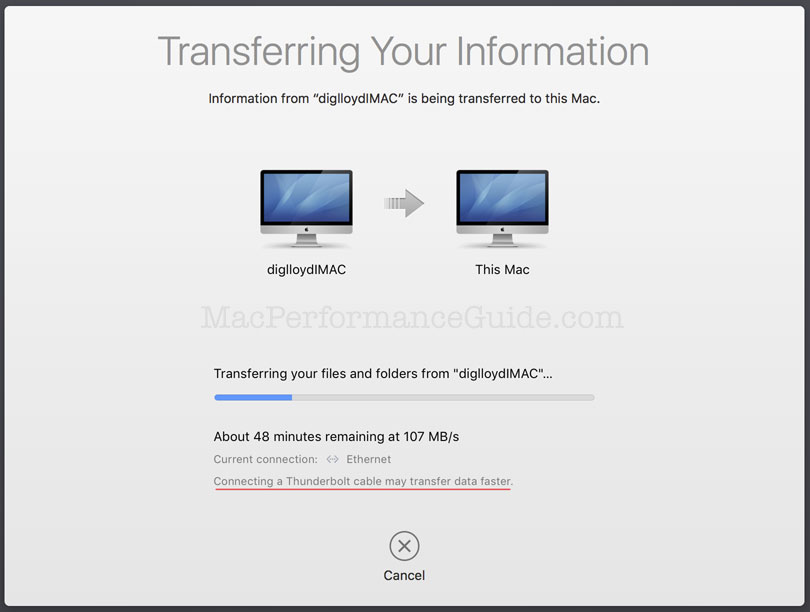
L’inconvénient de cette méthode est que tout est transféré et donc on repart avec un nouvel ordi déjà bien rempli ou potentiellement déjà saturé. Cela inclut les préférences corrompues, les fichiers inutiles ou obsolètes et les app oubliées et potentiellement inutiles également.
Restauration depuis Time Machine
Time Machine c’est le backup intégral du Mac sur disque dur. Cette méthode est assez similaire à la migration directe.
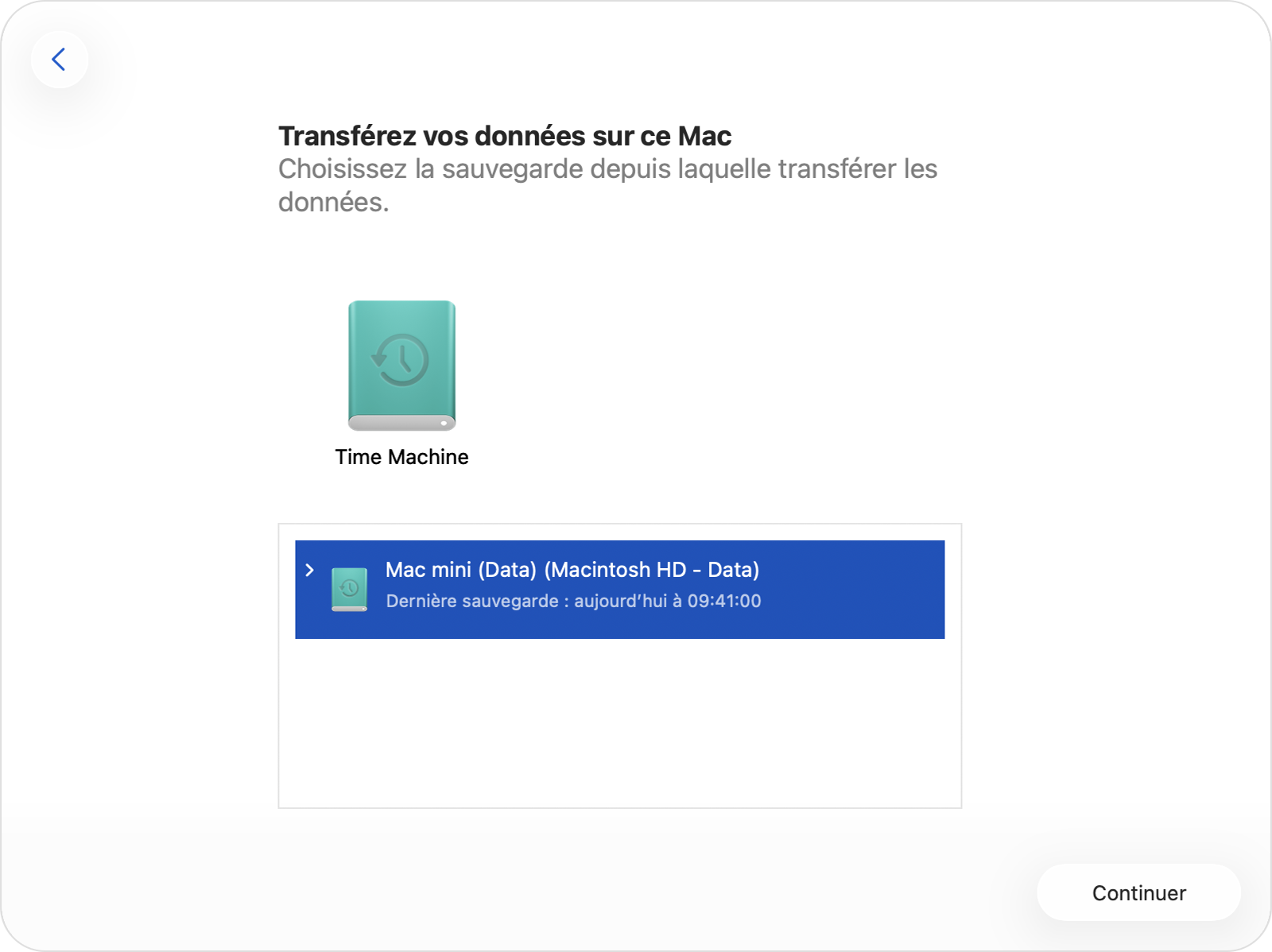
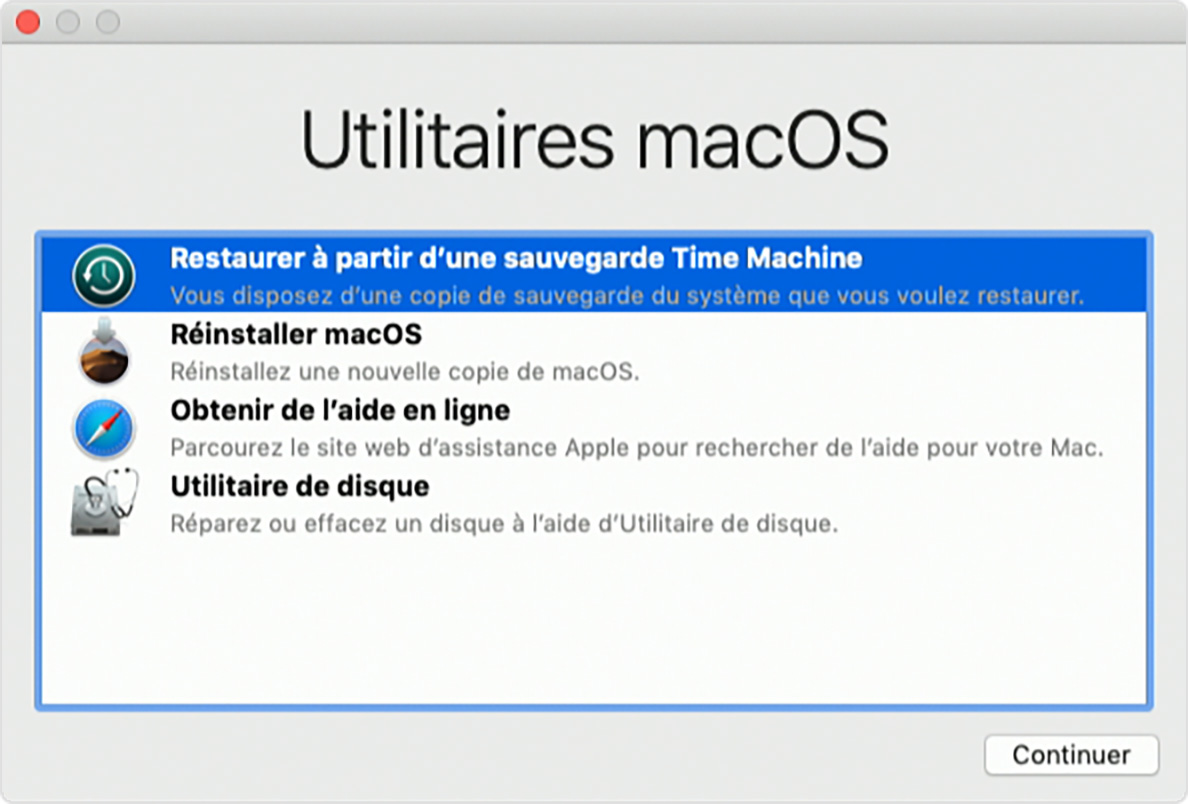
Cela permet de restaurer une sauvegarde complète. Le nouveau Mac sera identique à l’ancien.
L’inconvénient majeur est encore plus problématique dans le sens ou absolument tout est restauré de l’ancien Mac, y compris les fichiers caches et systèmes. On se retrouve avec un nouveau Mac chargé comme s’il avait vécu toutes les longues années de l’ancien.
Autre inconvénient, la restauration depuis Time Machine des photos et autres Documents et Bureau crée en quelque sorte une nouvelle version de ces documents sur le disque local et iCloud devra les synchroniser avec son drive dans le nuage ce qui est assez lent et intensif sur le réseau.
Installation propre + récupération ciblée
Cette méthode permet de démarrer une nouvelle vie sur un nouveau Mac sans rien perdre de l’ancien et tout en faisant un grand nettoyage. Lors de l’installation on choisira “Setup as new” et on se connectera ensuite à son compte iCloud ce qui permettra de retrouver les data.
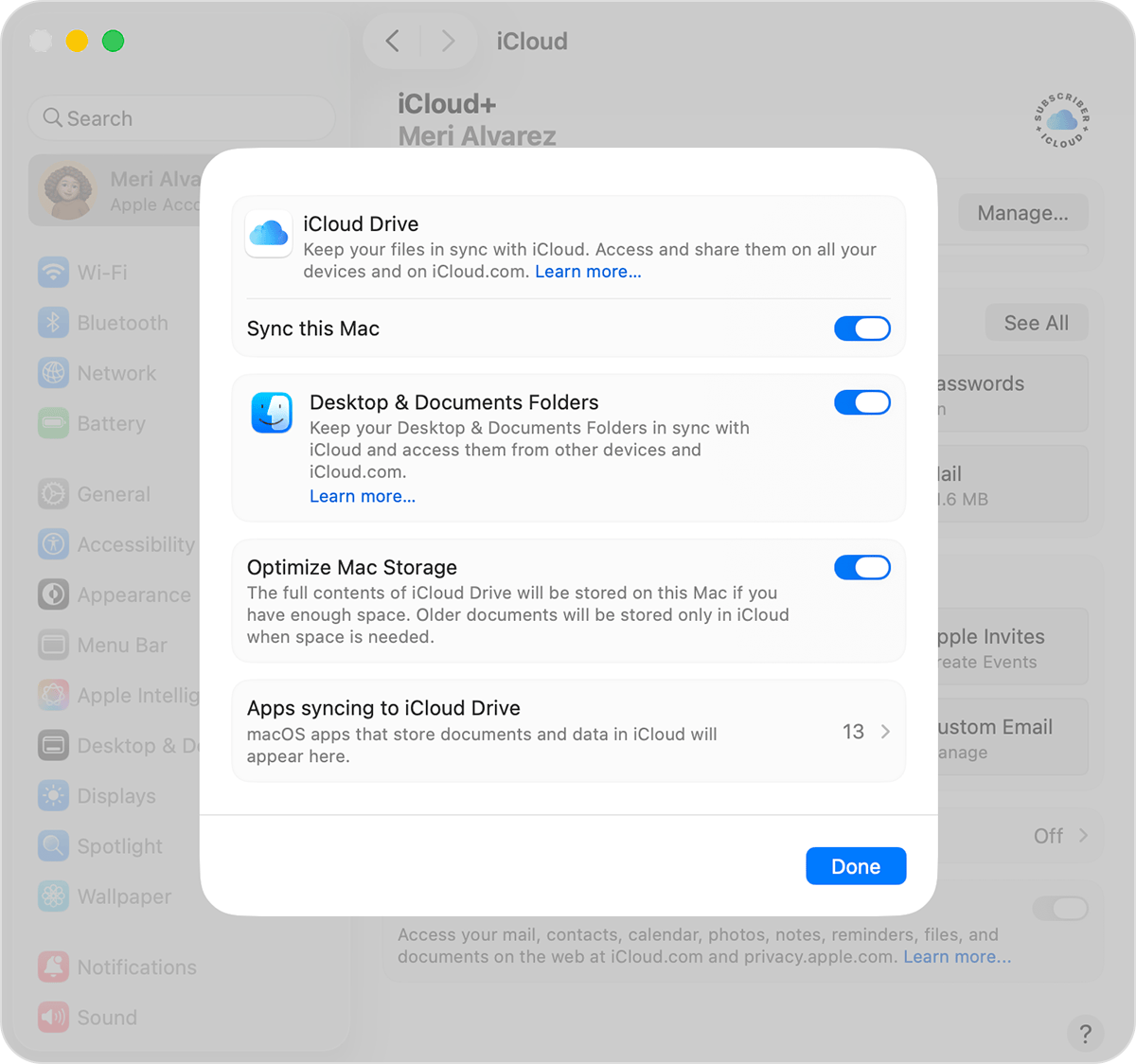
Si iCloud était bien configuré sur l’ancien Mac pour Photos, Documents et Bureau, tout cela sera redescendu du nuage. Cette opération peut prendre de nombreuses heures, mais elle se fait en background (arrière-plan) et le nouveau Mac est opérationnel immédiatement. Il faut une bonne connexion à Internet puisque tous les fichiers data seront récupérés dans iCloud.
Pour les Apps on se connectera à l’App Store et dans les propriétés du compte on peut retrouver toutes nos Apps achetées ou simplement installées précédemment et on pourra choisir individuellement lesquels réinstaller. Cela permet un certain nettoyage.
A tout moment il sera possible de lancer l’assistant de migration pour récupérer sélectivement des data depuis la sauvegarde Time Machine pour d’éventuels documents ou app non synchronisés dans iCloud.
Cette dernière méthode est à mon sens la plus clean et celle qui permet le plus grand contrôle de ce qui est récupéré / abandonné.
One more thing!
Après cette étape, ne pas oublier d’activer Time Machine sur le nouvel ordi. Idéalement sur un nouveau disque Time Machine ou, si on est bien sûr à 100% d’avoir tout restauré, sur le même disque Time Machine après l’avoir effacé.